

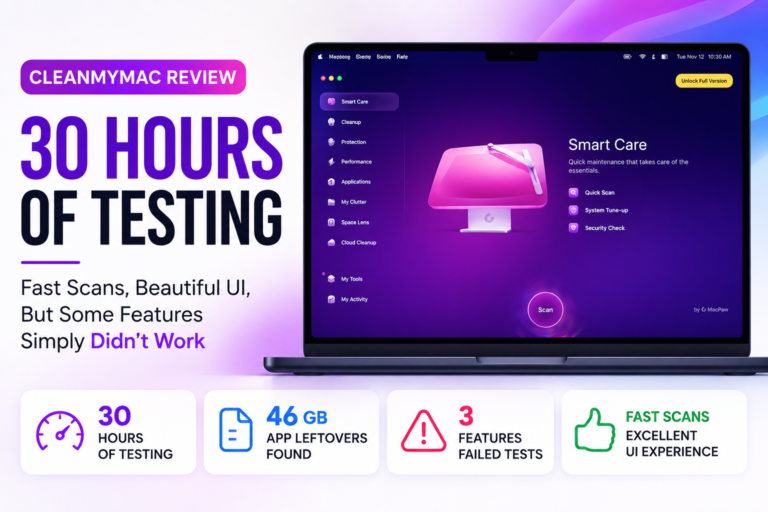
Mac cleaning software has always been a weird category. Half the Mac community thinks these tools are essential. The other half will tell you macOS handles everything on its own and you’re basically paying for a placebo. After spending serious time with CleanMyMac over the past days, I think the truth sits somewhere in the middle, but closer to one side than MacPaw would probably prefer.
I ran CleanMyMac daily on my MacBook Air M4 running macOS Tahoe 26.5.1 for roughly 30 hours across four days. Not a quick run-through. I deliberately set up test scenarios, created duplicate files, filled the Trash with recoverable data, monitored scan timing, and pushed through every major module to see what actually happened versus what the marketing suggests. Some results were genuinely impressive. Others were hard to explain.
Testing Environment
Before getting into specifics, here’s what I was working with:
Device: MacBook Air M4 OS: macOS Tahoe 26.5.1 Architecture: Apple Silicon Testing Duration: ~30 hours across four weeks
I tested Smart Care, performance optimization, app cleanup, duplicate file detection, similar image detection, trash management, and the various utility tools. The focus throughout was real-world usability, the kind of tasks a typical Mac owner would actually care about, not synthetic benchmarks.
First Launch: More Polished Than Anything Else in This Category
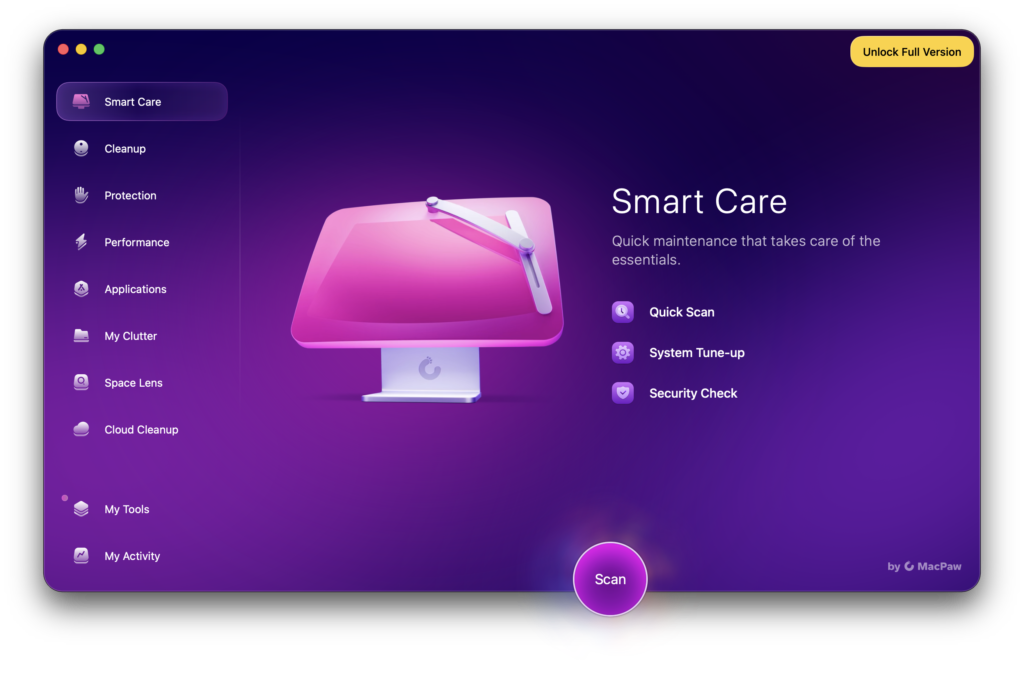
When you open CleanMyMac for the first time, it plays a short animated introduction with music. It only appeared once during my entire testing period, which I appreciated, I don’t need a welcome ceremony every time I launch a cleaning tool. Whether it actually improves the experience is debatable. It felt a bit like a welcome music for software. But I’ll say this: it sets the tone correctly, because CleanMyMac genuinely looks exceptional.
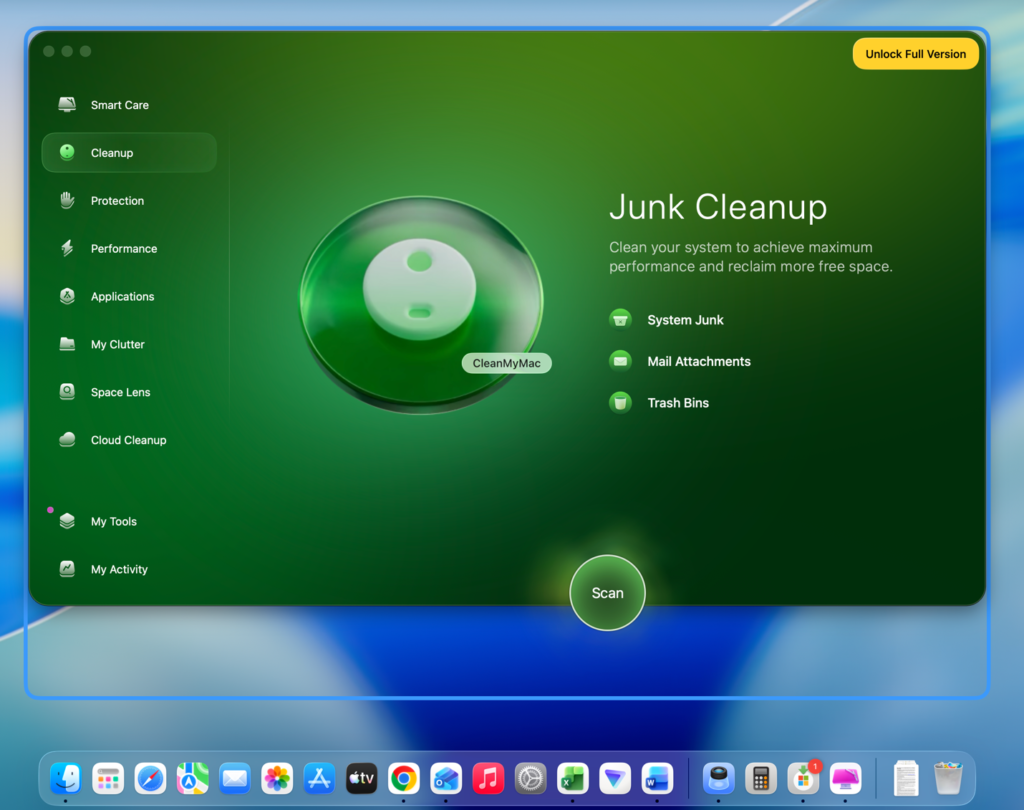
What stood out immediately was how thought-through the interface design is. Each section has its own color identity, Performance gets a warm orange, cleanup modules stay consistent, navigation flows without friction. After going through plenty of Mac utility apps over the years, this is one of the few that looks like someone really cared about how it felt to use, not just what it could do.
One detail I noticed during testing: the actual application window extends slightly beyond what you can see on screen. There’s extra frame space around the visible interface, mostly to accommodate certain floating UI elements, including scan button positioning. It’s a minor thing most users won’t ever think about, but it’s the kind of detail that shows up.
The About Page: Small Thing, But Worth Mentioning
I checked the About section out of habit during testing and noticed that CleanMyMac credits individual engineers by name. Most software companies don’t do this, everything lives behind a brand.
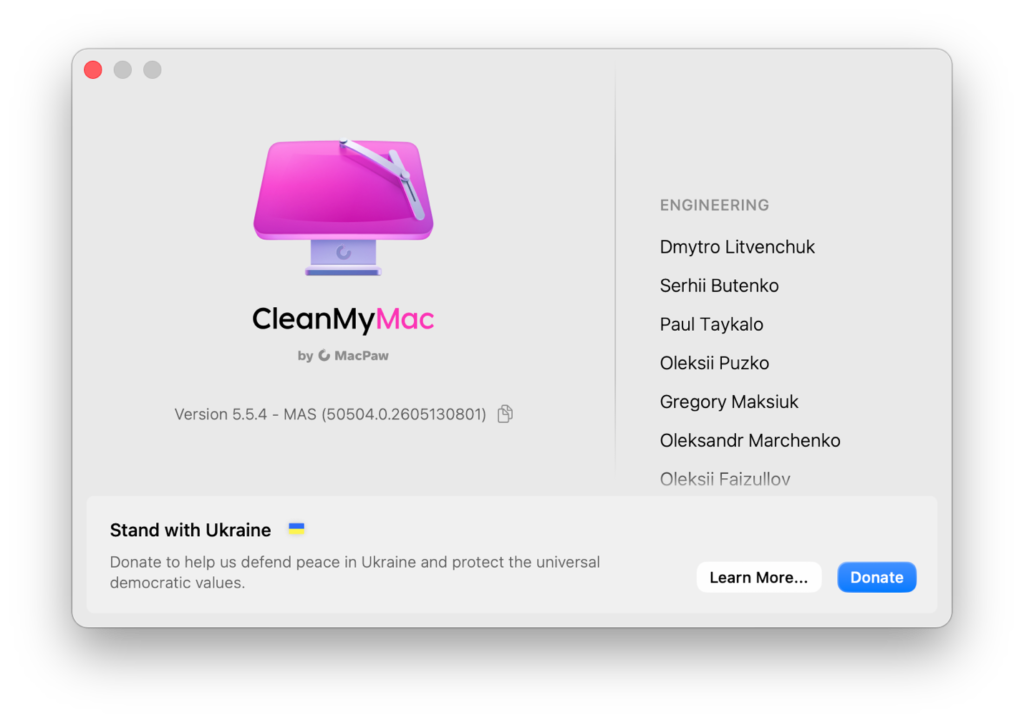
It’s a small choice, but it made the product feel less like a faceless subscription and more like something people actually built and care about maintaining.
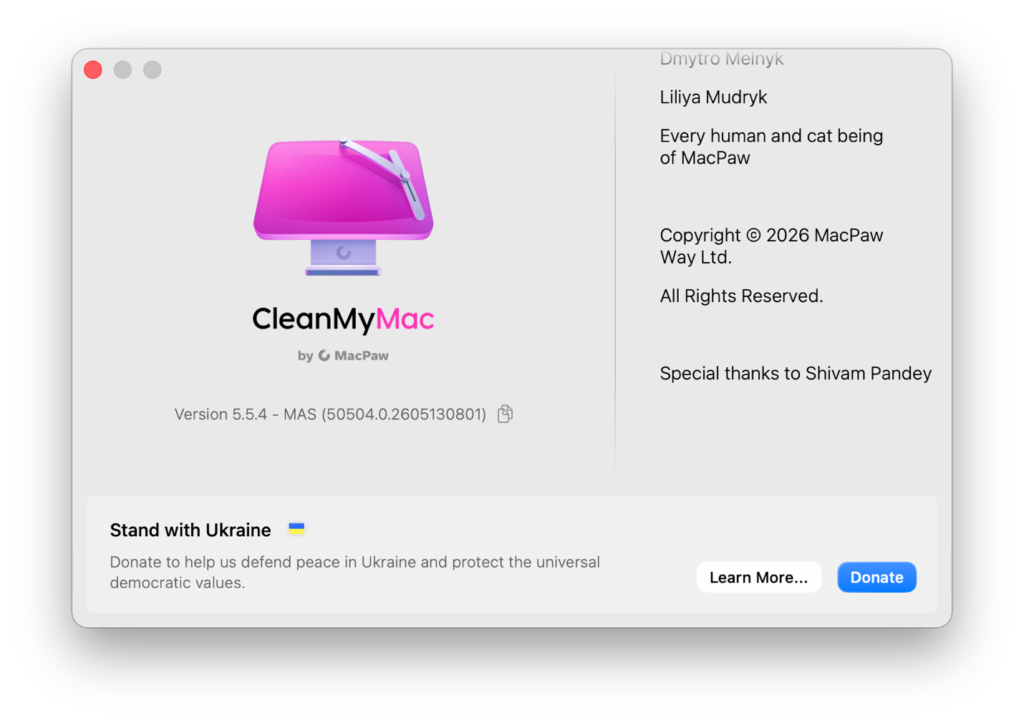
It even had my name in last as Special thanks. I liked this touch.
Performance Module: Quick to Scan, Slow to Deliver
The Performance section is visually one of the strongest parts of the app. The orange color scheme feels active and purposeful, and the scan itself completed quickly, more on scan speed in a moment.
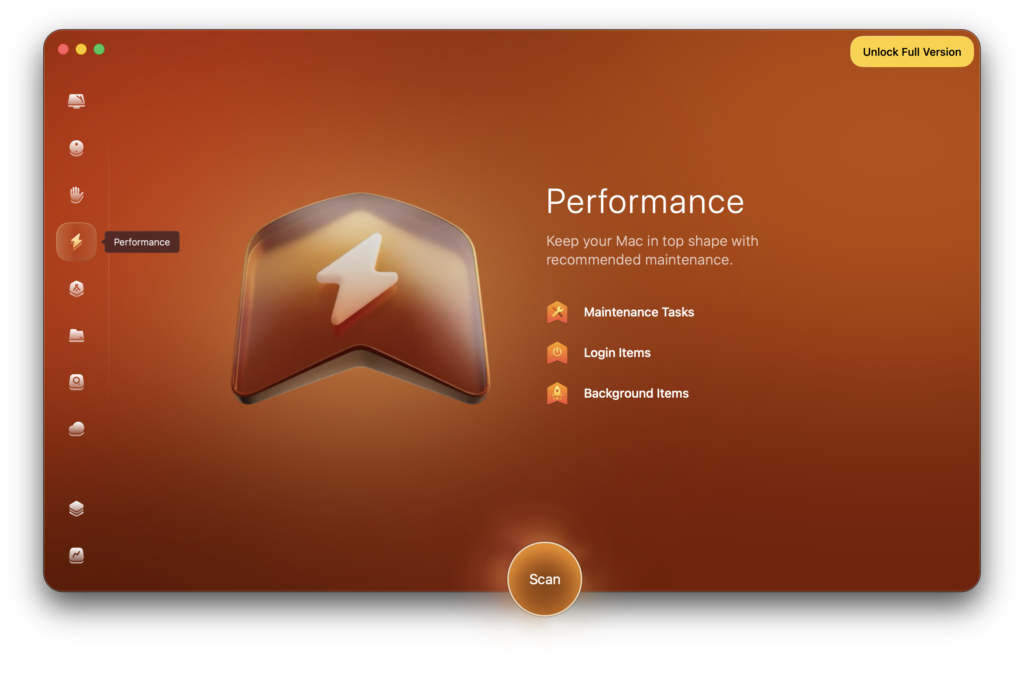
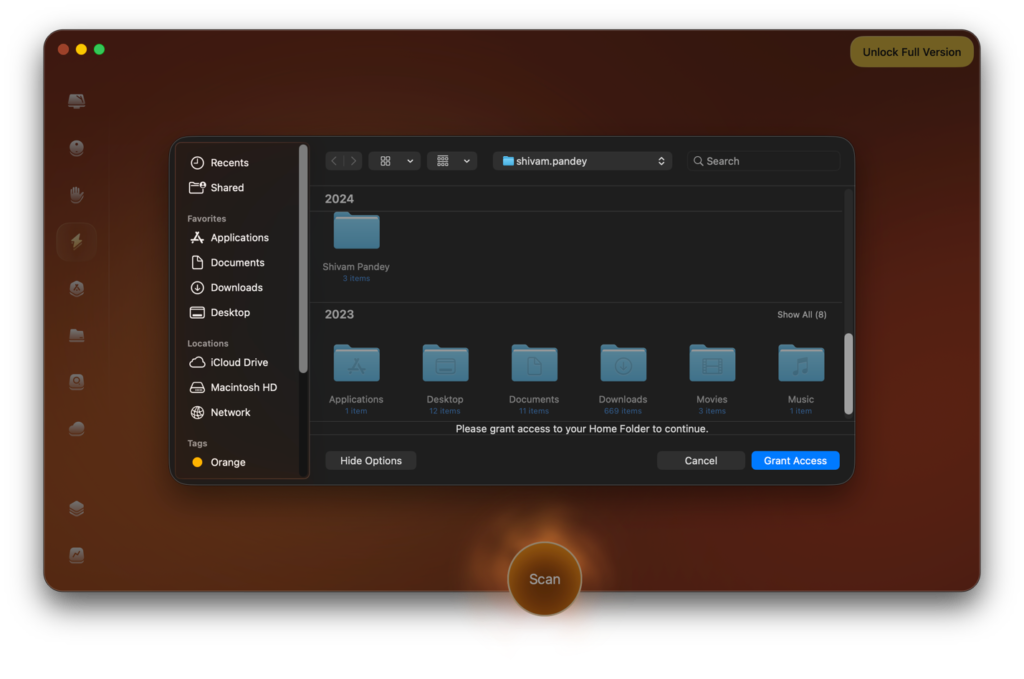
What I noticed here was actually more about the permission flow than the results. Before running the scan, CleanMyMac clearly explained why it needed system access and what it would be doing with it. That’s not a given. A lot of utilities quietly request broad permissions without explanation. The transparency here is worth noting.
The scan found four background processes flagged as candidates for disabling to improve performance. Reasonable enough suggestion. But when I tried to act on those recommendations, a paywall appeared.
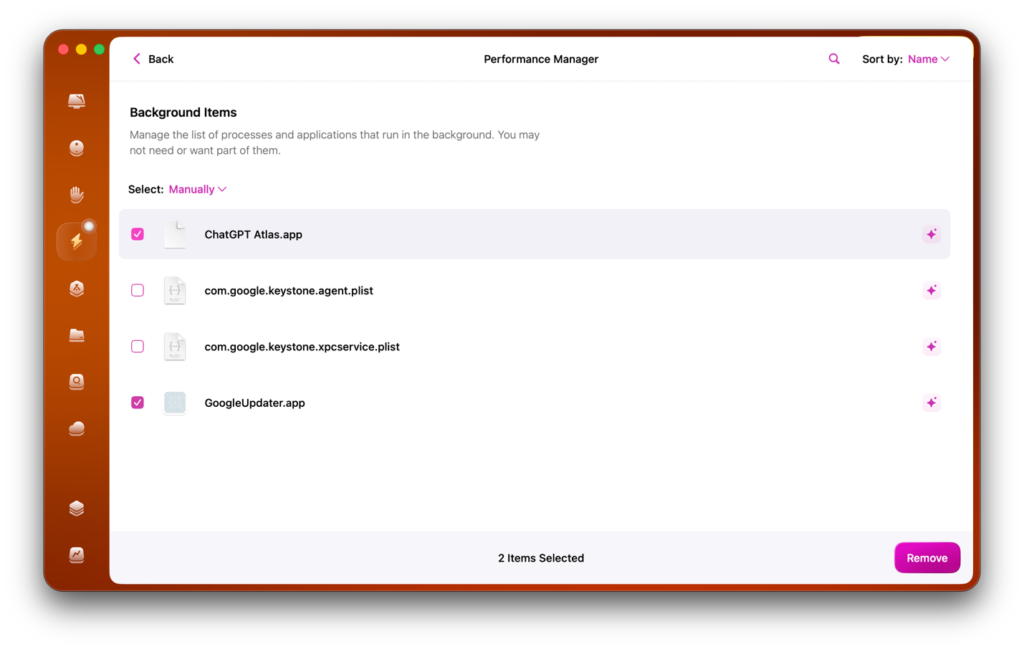
I want to be fair about this, trial software with locked features is entirely normal. What frustrated me was where the lock appeared: at the very end of the action, not at the beginning.
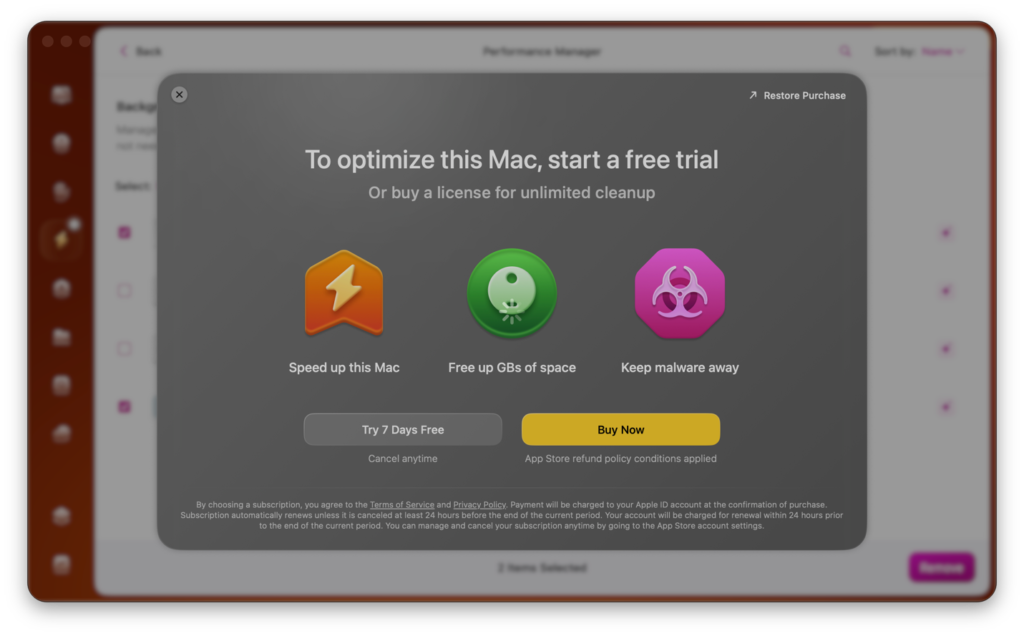
You go through the full scan, review what it found, click to optimize, and then it asks you to upgrade. Earlier communication about what’s actionable in the free version versus what requires a subscription would save users from that particular friction.
Application Cleanup: The Scanner Is Fast. Very Fast.
Across all my testing sessions, the one thing that consistently impressed me was how quickly CleanMyMac scanned. The Application section flagged approximately 46 GB of leftover data, residual files from apps I’d previously uninstalled, cached libraries, support files that survived the drag-to-trash routine. That’s a real amount of recoverable storage, and the scan surfaced it in a fraction of the time I expected.
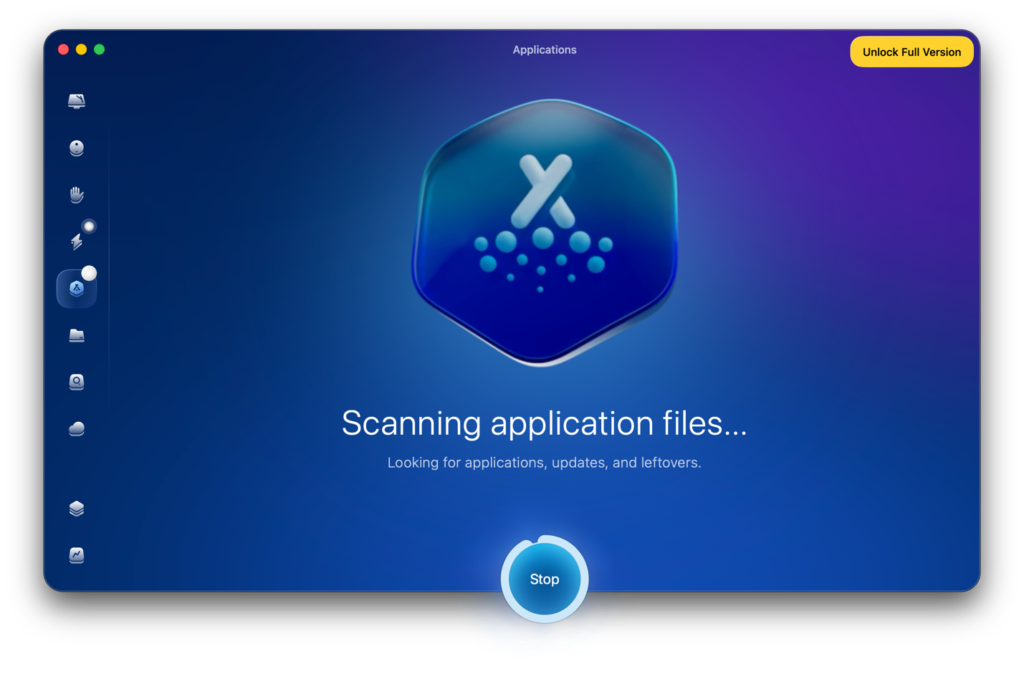
If scanning speed is your benchmark, CleanMyMac beats most competitors I’ve tested. It’s noticeably faster than alternatives on Apple Silicon, and the M4 performance felt smooth throughout, no spinning beachballs, no sluggish transitions.
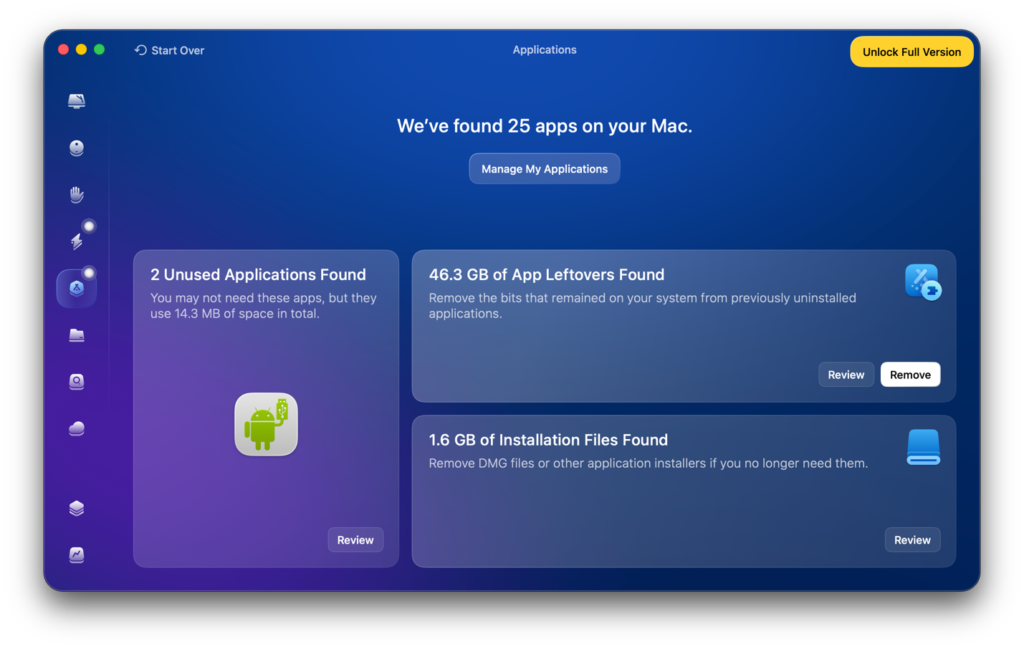
Same caveat applies here, though: reviewing the results is free, cleaning them out isn’t. The free tier essentially functions as a detailed report of what the software would do if you paid for it.
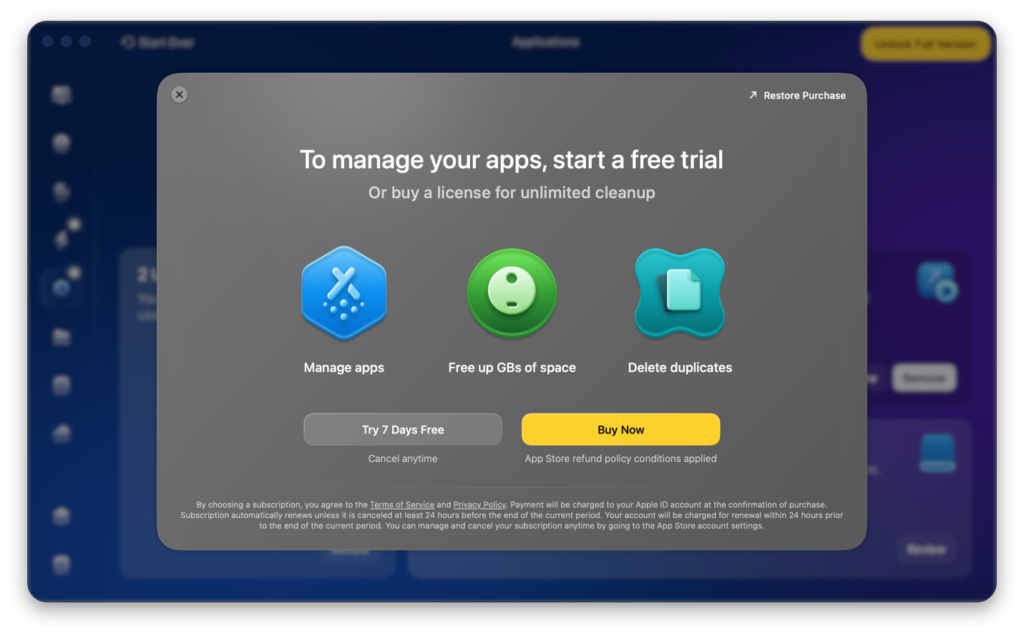
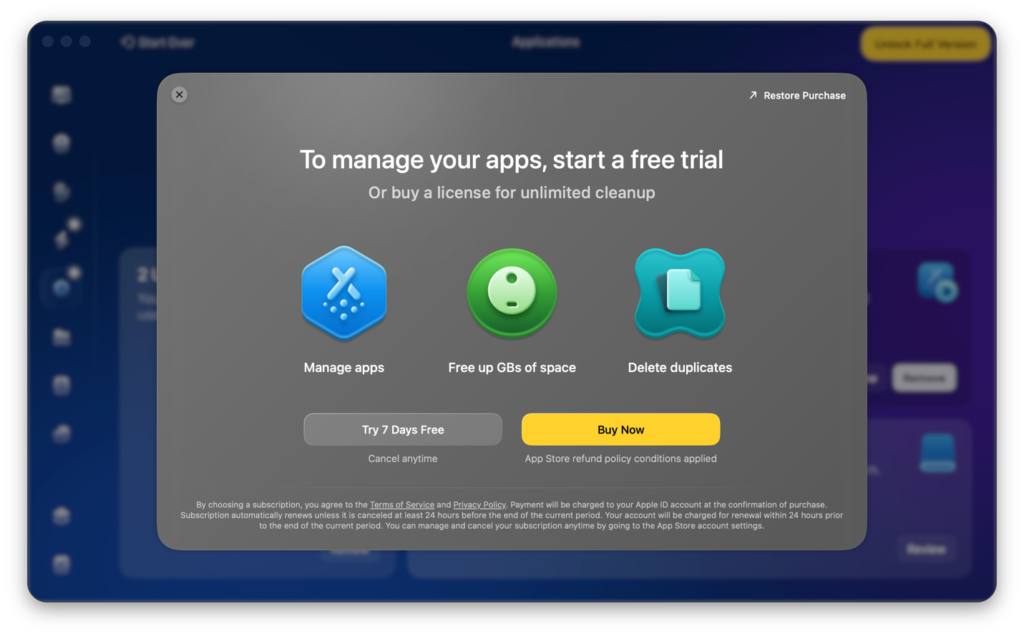
Then I tried to see whether there was actually anything that worked without paying or starting the 7-day free trial
There was a section in the bottom-left corner called “My Tools” that contained several utility options.
I tried the “Time Machine Snapshot” feature first because I have some experience with data backups and recovery, so it immediately caught my attention.
But after a pretty quick scan it once again showed me to purchase the license. So now we know that there is nothing that can be done in the this demo version. What I didn’t understand was why they didn’t clearly mention that this is a demo version rather than a free-to-use application.
Duplicate Finder: The Test That Failed
This is the section I spent the most time on, and honestly the one that changed my overall impression of the software the most.
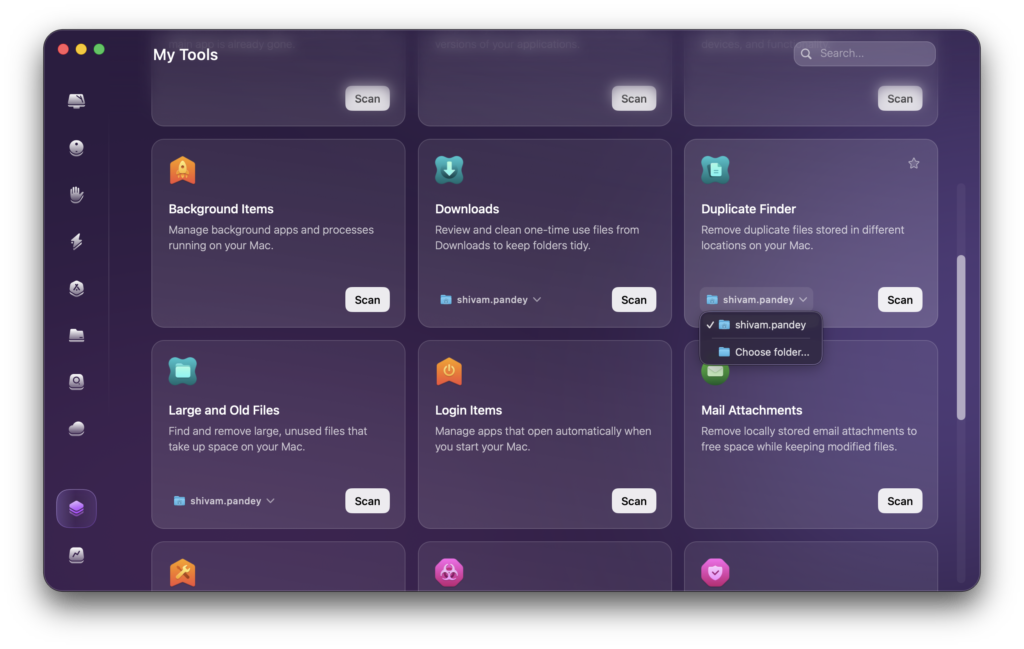
Duplicate file management is one of the primary reasons people buy Mac cleanup tools. So I ran a controlled test. I created a folder with genuine duplicate files, same content, same file size, identical structure. The kind of duplicates that even basic duplicate-finding tools catch without effort.
CleanMyMac’s Duplicate Finder returned zero results.
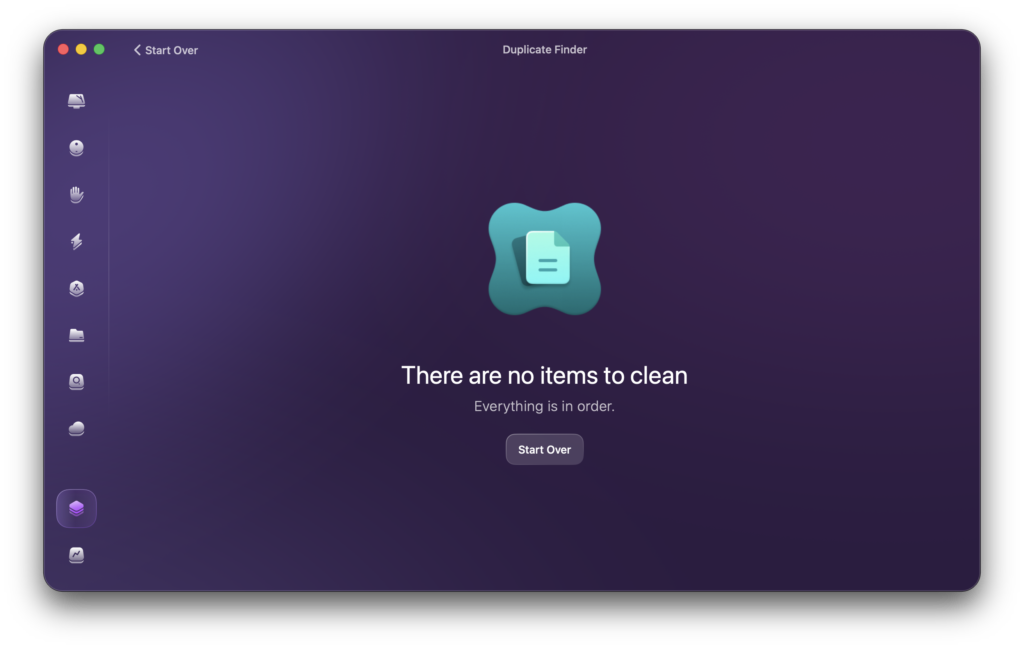
I double-checked the folder. I re-ran the scan. Same outcome.
I want to be careful not to overstate this. One failed test on one system isn’t a comprehensive verdict. But a duplicate finder that can’t find intentionally placed, obvious duplicates has a problem. The bar for this feature isn’t precision matching of near-duplicate files across thousands of folders, the bar is finding the same file copied into the same directory.
It didn’t clear that bar during my testing.
Similar Images Detection: Same Story
I expected the Similar Images tool to be harder to evaluate because image matching is genuinely more complex than file comparison. Even well-regarded photo libraries sometimes miss matches, and false positives are a real problem in this space.
But CleanMyMac didn’t return partial results or ambiguous matches, it returned nothing at all. No similar images detected across any of my controlled tests.
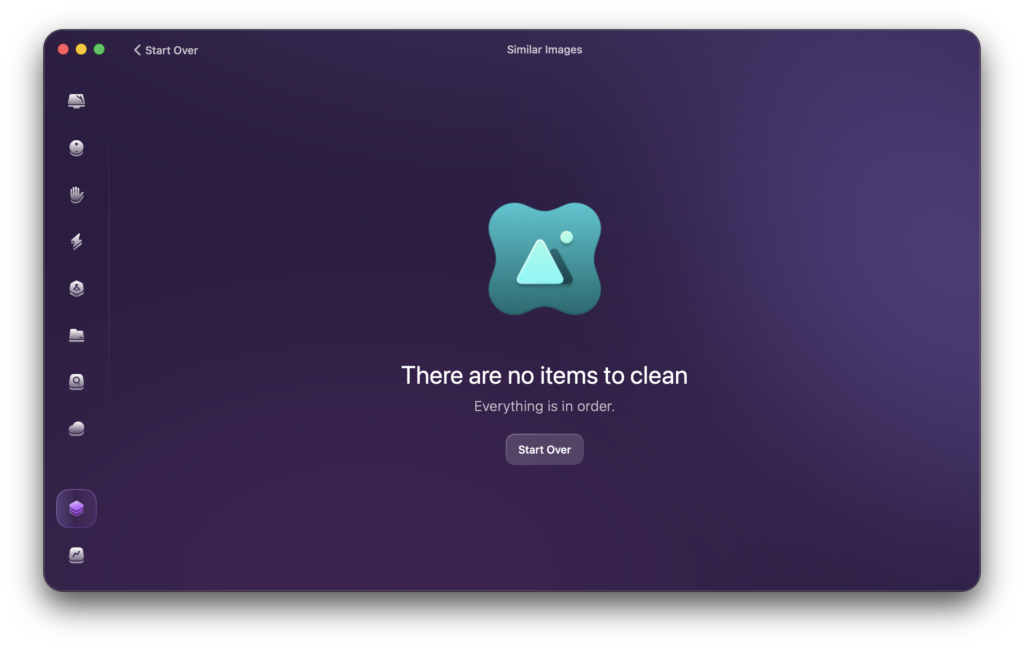
For someone purchasing this software specifically to clear out duplicate photos from a large library, that result is a real problem. If the feature can’t identify prepared test data, I’d be cautious about relying on it for real-world photo management.
Trash Cleanup: A Result That Didn’t Add Up
One of the stranger moments in my testing: I ran the Trash cleanup module while my Trash contained several files. The contents were visible in macOS, not hidden, not locked, just sitting there waiting to be emptied.
CleanMyMac reported nothing to clean.
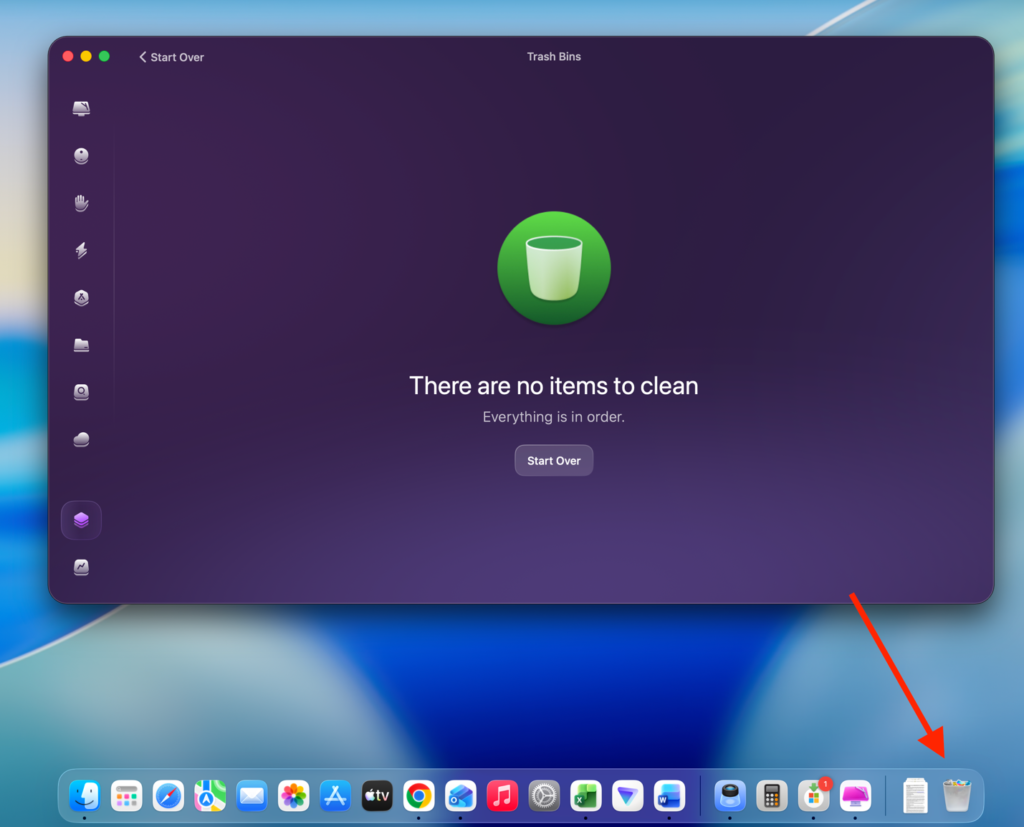
I verified the Trash contents multiple times. The files were there. The software simply didn’t find them.
I don’t have a clean explanation for this. It may be a permissions edge case, a detection behavior tied to how certain files land in Trash on Apple Silicon, or something specific to my setup. But a cleanup tool that reports a clean Trash while macOS shows files sitting in it is difficult to trust at face value. This is the kind of inconsistency that makes users second-guess the scan results elsewhere in the app.
Where CleanMyMac Actually Holds Up
Despite the problems above, there are real strengths here that deserve honest credit.
Scan speed is genuinely competitive. Across every module I tested, CleanMyMac was consistently faster than alternatives. If you’re running this on Apple Silicon, it’s noticeably well-optimized.
The interface is in a different league. Most utility apps look functional at best and outdated at worst. CleanMyMac looks like something that was designed rather than assembled. That matters for software you use regularly.
Permission handling is better than most. Explaining what access is being requested and why it’s needed is a baseline that more utilities should meet but don’t.
The onboarding experience is polished. From launch to first scan, everything feels intentional.
What Needs Work
After 30 hours of use, a few things stand out as genuine gaps rather than minor complaints.
The duplicate detection issues aren’t cosmetic, they’re functional failures on a core feature. The similar image recognition produced no usable results in testing. The Trash utility produced a result that contradicted what macOS was showing directly. And the free version’s structure means users regularly reach the end of a workflow before discovering they can’t complete it.
Several utilities in CleanMyMac also overlap closely with what macOS already does natively. That overlap isn’t always a problem, sometimes a unified interface has real value, but it does mean that some features aren’t adding much beyond what you could do without the software.
Pricing
CleanMyMac offers a free tier with scan visibility, annual subscription plans, multi-device licensing, and a lifetime purchase option. The pricing structure itself is reasonable for this category.
The more important question is whether the features that drive most purchase decisions, duplicate detection, photo cleanup, utility tools, work reliably enough to justify the cost. Based on my testing, the answer is inconsistent depending on which features you’re counting on.
30-Hour Testing Summary
| Feature | Result |
| Duplicate Finder (Controlled Test) | Failed |
| Similar Image Detection | Failed |
| Trash Detection Accuracy | Failed |
| App Leftovers Identified | ~46 GB |
| Performance Suggestions Found | 4 |
| Scan Speed | Excellent |
| Interface Quality | Excellent |
| Overall Reliability | Mixed |
Final Verdict
After a month of testing, CleanMyMac is a product I’d describe as genuinely impressive in some ways and genuinely frustrating in others, and those two things don’t cancel out cleanly.
The scanning engine is fast. The interface is among the best I’ve used in this category. The attention to design detail throughout the app is hard to miss. If what you want is a well-organized tool for application cleanup, system scanning, and general maintenance with a polished interface, CleanMyMac delivers that experience consistently.
But three of its most advertised features, duplicate file detection, similar image identification, and Trash management, failed real-world testing on my system. For users primarily interested in duplicate photo removal or file deduplication, that’s not a minor footnote.
What CleanMyMac feels like after 30 hours is a product built by people with strong design and engineering skills, where certain utility features haven’t caught up to the quality of the interface surrounding them. That gap matters more as the software positions itself as an all-in-one optimization platform. If the feature set you care about is app cleanup and scanning, it’s a reasonable option. If the features you’re buying it for are duplicate detection and similar image tools, I’d test carefully before committing.