

Introduction
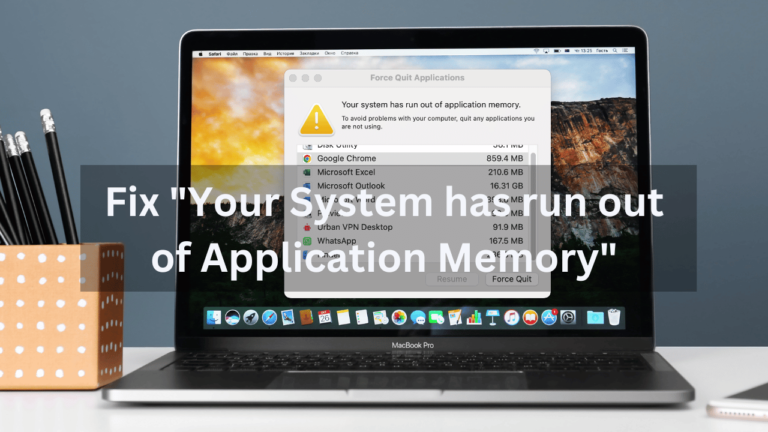
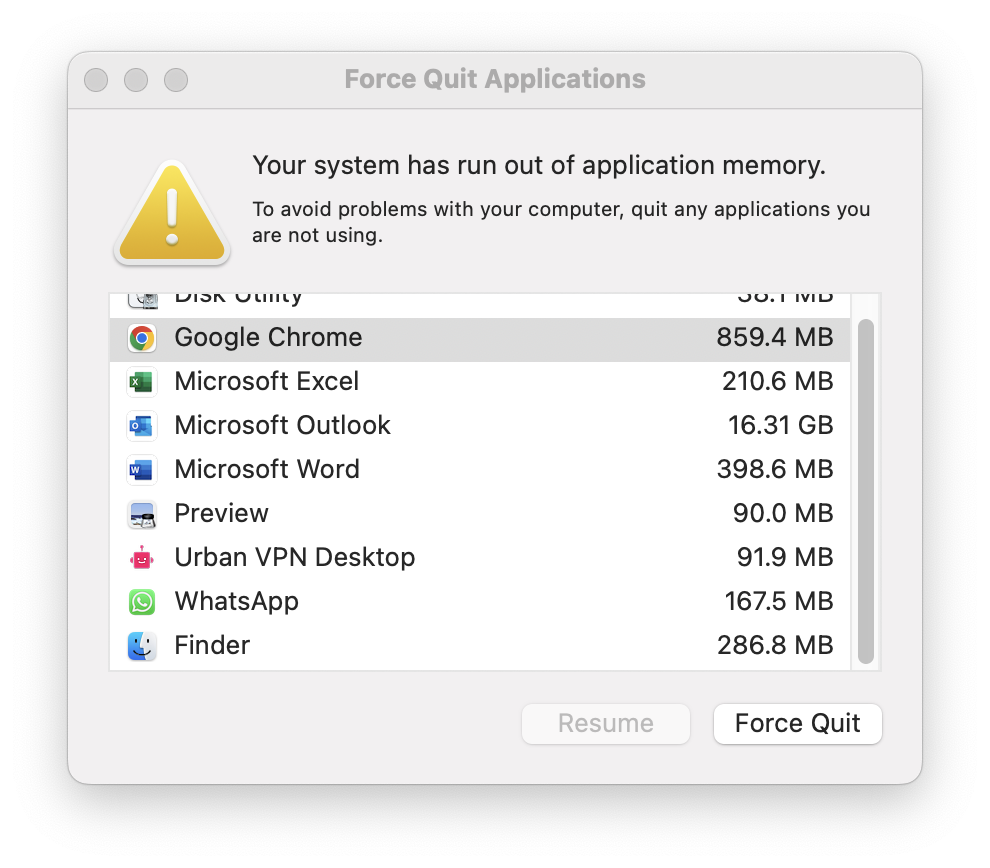
Seeing the message “Your system has run out of application memory” on your Mac can be extremely frustrating, especially when you’re in the middle of important work, and it breaks your flow. Apps slow down, the system becomes unresponsive, and sometimes macOS forces you to quit applications without warning.
The good news is that this error usually doesn’t mean your Mac is broken. In most cases, it’s a sign of poor memory management, misbehaving apps, or unnecessary background load. In this guide, I’ll explain what this error actually means and walk you through 8 practical ways to fix it, based on real-world macOS behaviour
What does “Your System Has Run Out of Application Memory” mean?
macOS uses RAM and virtual memory to keep apps running smoothly. When apps consume more memory than the system can manage safely, macOS throws this warning to prevent crashes.
This can happen even on Macs with plenty of RAM because:
- Some apps consume excessive memory
- Browser tabs pile up quietly
- Background processes never release memory
- Storage is too full to support virtual memory (swap)
Understanding this helps you fix the root cause instead of guessing.
Why does this error happen on Mac
Common reasons include:
- Too many apps are running at once
- Heavy browser usage (especially Chrome-based browsers)
- Memory leaks in specific applications
- Low free storage space
- macOS is struggling to manage swap memory
- Long uptime without restarting
Now let’s fix it properly.
Here are 8 effective strategies to reclaim memory and get your Mac humming again:
Immediate Relief from “Your System Has Run Out of Application Memory” Issue :
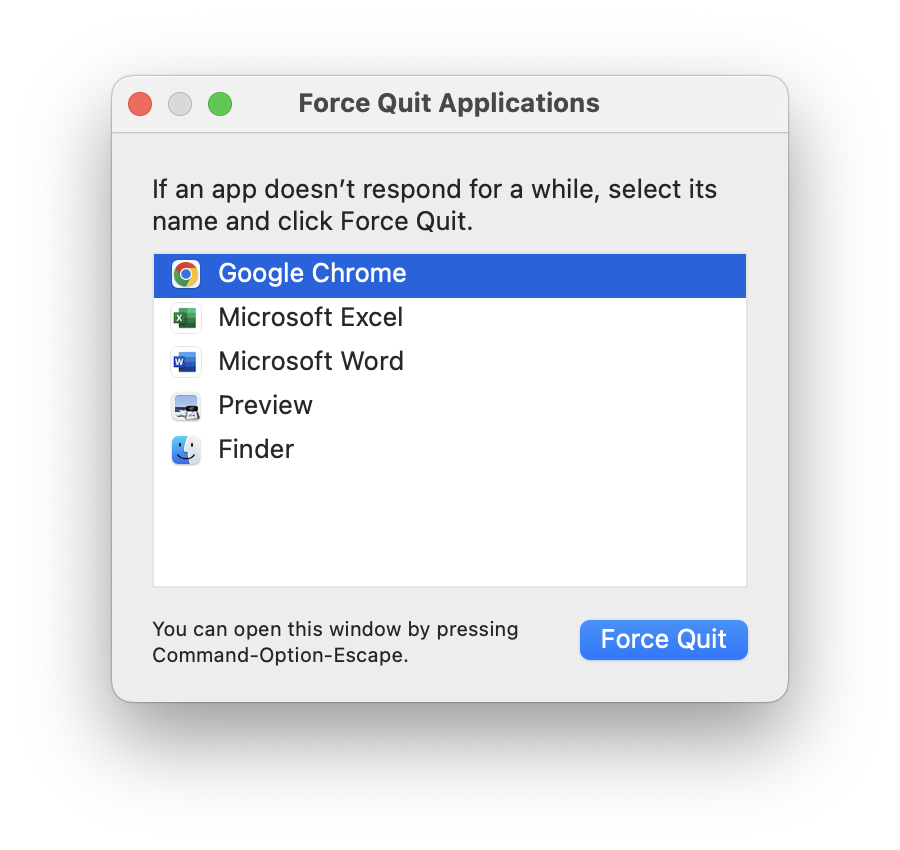
- Force Quit the Culprits: Use the
Option + Command + Escshortcut to identify and evict unused applications using precious memory. Close them with a firm “Force Quit” to free up resources instantly. Remember, Force-quitting applications abruptly can result in data loss if unsaved work is present.
- Empty Your Browser’s Burden: Browsers stock data like digital packrats. Clear your cache and browsing history to shed unnecessary baggage and boost memory. Clear only unnecessary cache. Remember, you might lose saved passwords and browsing preferences if you do this.
- Tame Browser Extensions: Some extensions gobble up memory discreetly. Disable the ones you rarely use or explore lightweight alternatives to lighten the load.
- Activity Monitor: Your Memory Detective: Open this app (Applications > Utilities) and sort by “Memory” to discover the top memory hogs. If possible, send them packing with a “Quit Process” click.
Long-Term Strategies for Fixing “Your System Has Run Out of Application Memory” Issue :
- Upgrade to the Latest macOS: Software updates often include memory management fixes. Check for and install the latest macOS version (Currently 13.2.1) to stay ahead of potential issues.
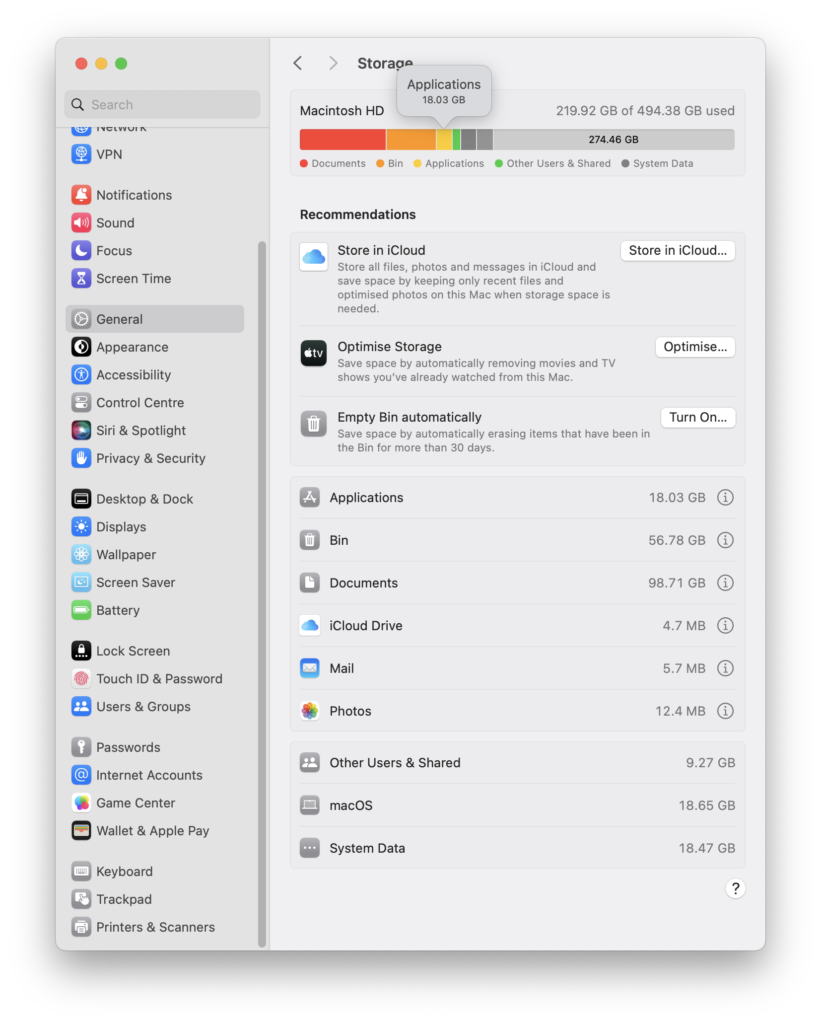
- Declutter Your Storage: Use Apple’s Storage Management tool (Apple menu > About This Mac > Storage > Manage) to identify and remove large files or unused applications. A tidy Mac is a happy Mac!
- Manage Memory-Intensive Apps: Be strategic with demanding applications. Consider closing them before launching other resource-heavy tasks to prevent memory overload.
- Hardware Heroics-Upgrade RAM: If you consistently face memory constraints, consider upgrading your RAM. This requires technical expertise or professional assistance, but it’s a powerful solution for chronic memory woes.
No More “Out of Memory” Pop Ups: Free Up Your Mac!
Does your Mac whine about “running out of memory”? Don’t let it stop you! Take charge and reclaim your computer’s performance with these simple steps:
- Quick Fix: Sometimes, all it takes is a restart. It cleans up temporary files and gives your memory a fresh start.
- Update Your Mac: Old software can be riddled with memory-hungry bugs. Install the latest updates to keep your Mac fighting fit.
- Find the Memory Hogs: Open Activity Monitor, your memory spy tool. See which apps are using the most memory and close the ones you don’t need. Be ruthless!
- Tame the Desktop Clutter: Those icons might seem innocent, but they secretly eat up memory. Organize them or move them elsewhere to free up space.
- Clean Up Hidden Junk: Temporary files are like digital clutter. Use tools like CleanMyMac X or just delete downloaded files and browser history to free up valuable space.
- Watch Out for Sneaky Leaks: Does a specific app seem to gobble up memory? Keep an eye on it over time. If it’s a known “leaker”, update it or find a replacement.
Remember, the key is finding the cause! Each step helps you understand why your Mac is struggling. Watch how it responds to your efforts and adjust your strategy. With this active approach, you’ll soon conquer the “out of memory” monster and work with smooth efficiency. No more blues, just happy Mac-ing!
8 Simple Ways to Fix “Your System Has Run Out of Application Memory”
1. Force quit memory-hungry apps
When your Mac slows down, some apps are usually to blame.
Press Option + Command + Esc, select apps you’re not actively using, and force quit them.
Tip:
Force quit only when necessary. Unsaved work may be lost.
2. Use Activity Monitor to find the real problem
Open Activity Monitor
(Applications → Utilities → Activity Monitor)
- Click the Memory tab
- Sort by Memory usage
- Look for apps using unusually high RAM
If an app is consuming excessive memory without reason, quit it.
3. Reduce browser memory usage
Browsers are one of the biggest memory consumers on macOS.
What helps:
- Close unused tabs
- Remove unnecessary extensions
- Clear cache occasionally
- Avoid keeping dozens of tabs open for long periods
If you rely heavily on your browser, consider tab-suspension features.
4. Restart your Mac (simple but effective)
A restart clears:
- Temporary memory files
- Stuck background processes
- Memory that hasn’t been released properly
If you haven’t restarted your Mac in days or weeks, this alone can fix the issue.
5. Free up storage space
macOS uses free storage as swap memory when RAM is under pressure.
If your storage is nearly full, memory issues become more frequent.
Go to:
Apple menu → About This Mac → Storage → Manage
Remove:
- Large unused files
- Old downloads
- Applications you no longer use
Aim to keep at least 15–20% free storage.
6. Update macOS and apps
Outdated software can contain memory leaks and bugs.
- Install the latest macOS updates
- Update memory-intensive apps like browsers, design tools, and editors
Updates often improve memory handling without you noticing.
7. Avoid running multiple heavy apps together
Some apps are naturally demanding:
- Video editors
- Photo editors
- Virtual machines
- Large IDEs
Try not to run several of these at the same time. Close one before opening another to reduce memory pressure.
8. Consider hardware limits (especially on older Macs)
If this error appears frequently even after trying everything:
- Your workload may exceed your Mac’s RAM capacity
- Older Intel Macs may benefit from a RAM upgrade (if supported)
For Apple Silicon Macs, RAM cannot be upgraded, so managing usage becomes even more important.
What not to do
- Don’t ignore the warning repeatedly
- Don’t force quit system processes randomly
- Don’t install random “memory booster” apps without understanding what they do
- Don’t keep working while apps are clearly frozen or unstable
These actions often make things worse.
How to prevent this error in the future
- Restart your Mac regularly
- Keep storage space available
- Monitor memory usage occasionally
- Limit unnecessary startup apps
- Update software consistently
Small habits go a long way in keeping macOS stable.
Conclusion
The “Your system has run out of application memory” error looks scary, but it’s usually macOS asking for attention, not signalling failure.
With the right mix of app management, storage cleanup, and awareness of memory usage, you can keep your Mac running smoothly without constant interruptions.
Fix the cause, not just the symptom, and your Mac will thank you for it.



Thank you so very much, this was so helpful
I’m glad the article was helpful! Thanks for dropping by.
Pingback: How to Force Quit on Mac: A Step-by-Step Guide