

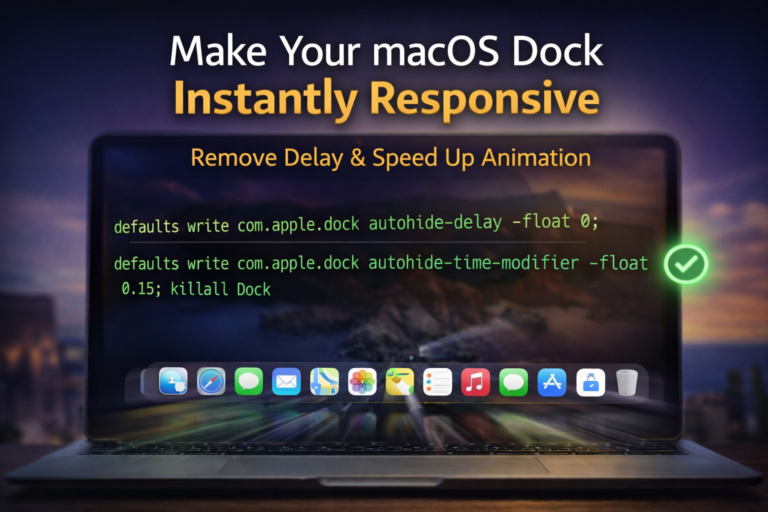
The macOS Dock is one of those things you use hundreds of times a day without thinking about it. It sits there quietly, launches apps, switches windows, and stays out of the way when you enable auto-hide.
But here’s the part Apple doesn’t tell you: even when auto-hide is on, macOS adds a deliberate delay and slow animation before the Dock appears. It’s subtle, but once you notice it, you can’t unsee it.
I’ve been using macOS long enough to know this isn’t about performance. It’s a design choice. And the good news is, you can change it safely in under a minute.
I’ve been running this setup for weeks now, and the Dock feels instant, responsive, and far more in line with how a fast desktop should behave.
Let’s break it down.
Why the Dock feels slow in the first place
When you enable Automatically hide and show the Dock, macOS applies two things:
- A delay before the Dock starts appearing
- A slow animation for the slide-in effect
Apple likely does this to prevent accidental triggers, but in real-world use, it just feels like friction. Especially if you:
- Work on a single monitor
- Use keyboard and mouse together
- Frequently move the cursor to screen edges
Once you remove that delay, the difference is immediately noticeable.
What we’re going to change (and what we’re not)
We’re not hacking the system or installing anything risky.
We’re simply adjusting two Dock preferences using Apple’s own defaults system:
- One setting removes the delay
- One setting speeds up the animation
- One command restores everything back to normal if you change your mind
This is safe, reversible, and has no effect on system updates or stability.
Step 1: Remove the Dock delay completely
This command tells macOS not to wait before showing the Dock.
defaults write com.apple.dock autohide-delay -float 0; killall Dock
What this does
- Removes the built-in pause
- The Dock appears the moment your cursor hits the edge
- killall Dock restarts the Dock so changes apply instantly
After running this, you’ll already feel a difference.
Step 2: Speed up the Dock animation
Now we make the Dock slide in faster instead of floating in slowly.
defaults write com.apple.dock autohide-time-modifier -float 0.15; killall Dock
Why 0.15 is the sweet spot
- Default value is roughly 0.5
- 0.15 feels fast but still smooth
- 0 makes it almost instant, but visually harsh for some people
This keeps the animation natural while removing the sluggish feel.
Step 3: Reset everything to default (if needed)
If you ever want Apple’s original Dock behaviour back, use this:
defaults delete com.apple.dock autohide-delay
defaults delete com.apple.dock autohide-time-modifier
killall Dock
No traces left behind. This simply removes the custom values and restores defaults.
Important things to know before you try this
A few points worth mentioning:
- These changes only apply if Dock auto-hide is enabled
- Effects are immediate after the Dock restarts
- This works on modern macOS versions including Sonoma and Sequoia
- No system files are modified
- Safe for daily work and long-term use
I’ve been running this setup across multiple macOS versions without a single issue.
What it feels like in daily use
This isn’t a flashy tweak. It’s a comfort upgrade.
- App switching feels faster
- No more waiting for the Dock to “think”
- Cursor movement feels more direct
- Especially noticeable on larger displays
After a few days, going back to the default Dock feels strangely slow.
Should everyone do this?
If you never use auto-hide, this won’t matter much.
But if you:
- Use auto-hide to maximise screen space
- Prefer a snappier, more responsive UI
- Like macOS to get out of your way
Then this is one of those small tweaks that quietly improves your daily workflow.
Final thoughts
Apple designs macOS for millions of users, which means it often chooses safe and conservative defaults. That doesn’t mean you have to live with them.
Removing the Dock delay and speeding up its animation is one of the cleanest, safest ways to make macOS feel faster without breaking anything.
Try it once.
Give it a day.
You’ll notice the difference.
If you want, I can also share similar tweaks for Mission Control, window animations, Finder responsiveness, or keyboard repeat behaviour.