

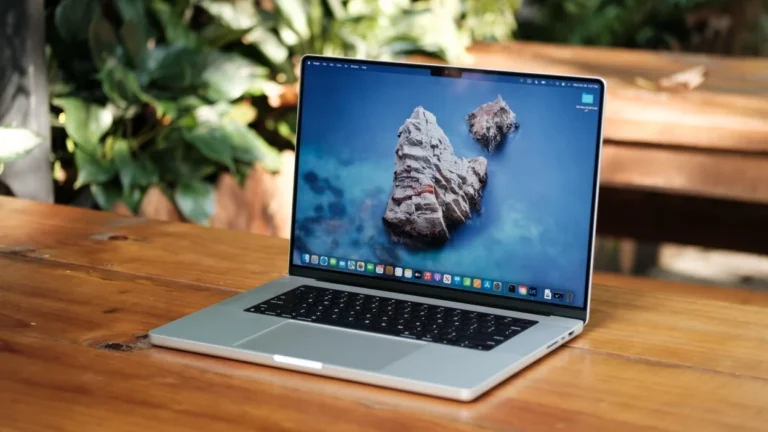
A close friend had been dealing with screen flickering for months. Not constant. Not predictable. Just frequent enough to be irritating and scary. Random brightness jumps. Brief flashes while scrolling. Occasional blinking after waking from sleep. Enough to make you wonder whether the display panel was slowly dying.
He handed me his MacBook Pro and said, “See if you can fix this.
I thought this would be a quick win.
It wasn’t.
It took days of testing, failed assumptions, and going deeper than the usual “restart and reset” advice. But that’s exactly why this article exists. Because if you’re facing MacBook Pro screen flickering on macOS Tahoe, the usual fixes often don’t tell you why it’s happening or why nothing seems to work at first.
Let me walk you through what actually caused it, what didn’t help, what finally fixed it, and how you can diagnose your own case logically instead of guessing.
What screen flickering really looks like on modern MacBook Pros
Before jumping to causes, it’s important to define the problem properly. “Screen flickering” is a broad term, and on modern MacBooks it usually shows up in subtle ways, not dramatic failures.
In this case, the symptoms were:
- Micro flickers when scrolling in Safari and Chrome
- Brief brightness flashes when switching apps
- Occasional blinking right after waking from sleep
- Flickering became worse when plugged into an external monitor
- The issue started after upgrading to macOS Tahoe
No physical damage. No visible lines. No permanent artifacts.
That detail matters, because it already tells you this is unlikely to be a dead display panel.
Why most MacBook Pro screen flickering is software-triggered
Here’s something many people don’t realize: modern MacBook displays are not “dumb panels.” They are tightly controlled by macOS.
Brightness, refresh rate, color profile, GPU switching, power delivery, even ambient lighting all feed into how the screen behaves. On macOS Tahoe, Apple pushed this further with more aggressive power optimization and dynamic display management.
That’s good for battery life. But it also means one small conflict can ripple across the display pipeline.
In my friend’s case, the flickering wasn’t random. It was contextual.
That’s always your first clue.
What I tried first (and why it didn’t work)
Let’s get the obvious steps out of the way.
Restarting the Mac
Did it help? Temporarily. The flickering reduced for a few hours, then came back.
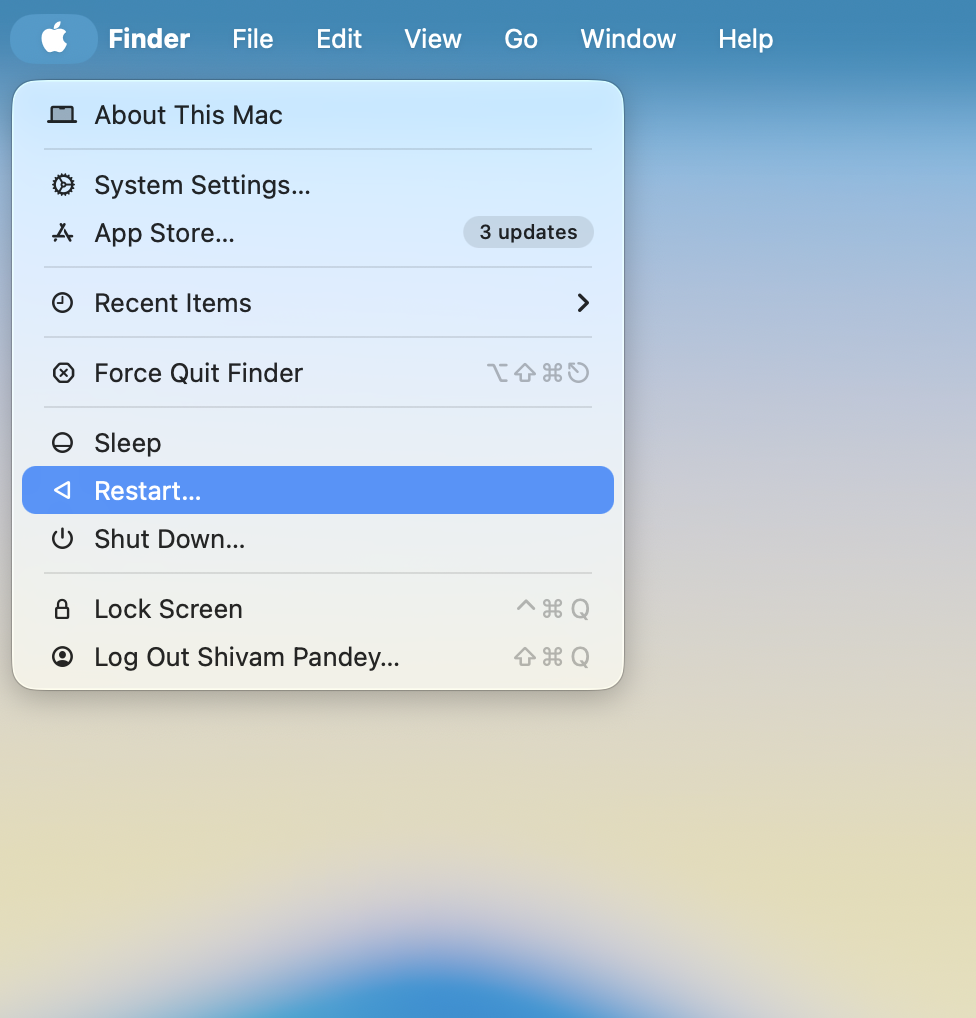
That tells you the issue resets with system state, not hardware.
Updating macOS Tahoe
We were already on the latest point release. No improvement.
Important note: if you’re on an early Tahoe build, updating is still critical. Apple quietly fixes GPU and display bugs in minor updates.
The real problem: a combination issue, not a single bug
What finally became clear is that this wasn’t one bug, but an interaction between multiple systems:
- Dynamic refresh rate handling in macOS Tahoe
- Automatic brightness and True Tone
- GPU switching behavior
- A third-party display-related background app
Each one alone was harmless. Together, they caused visible flickering.
This is why generic fixes failed.
Step 1: Understanding refresh rate behavior in macOS Tahoe
macOS Tahoe is more aggressive about dynamically adjusting refresh rates, especially on MacBook Pro models with ProMotion displays.
That’s great on paper. In reality, some apps don’t play nicely with it.
When the refresh rate rapidly switches between values, you can get:
- Micro flickers
- Brightness pulses
- Perceived blinking
What actually helped
Manually locking the refresh rate.
How to do it on macOS Tahoe:
- Go to System Settings
- Open Displays
- Hold the Option key and click on Refresh Rate
- Select a fixed value instead of “Variable”
The flickering reduced noticeably but didn’t disappear completely.
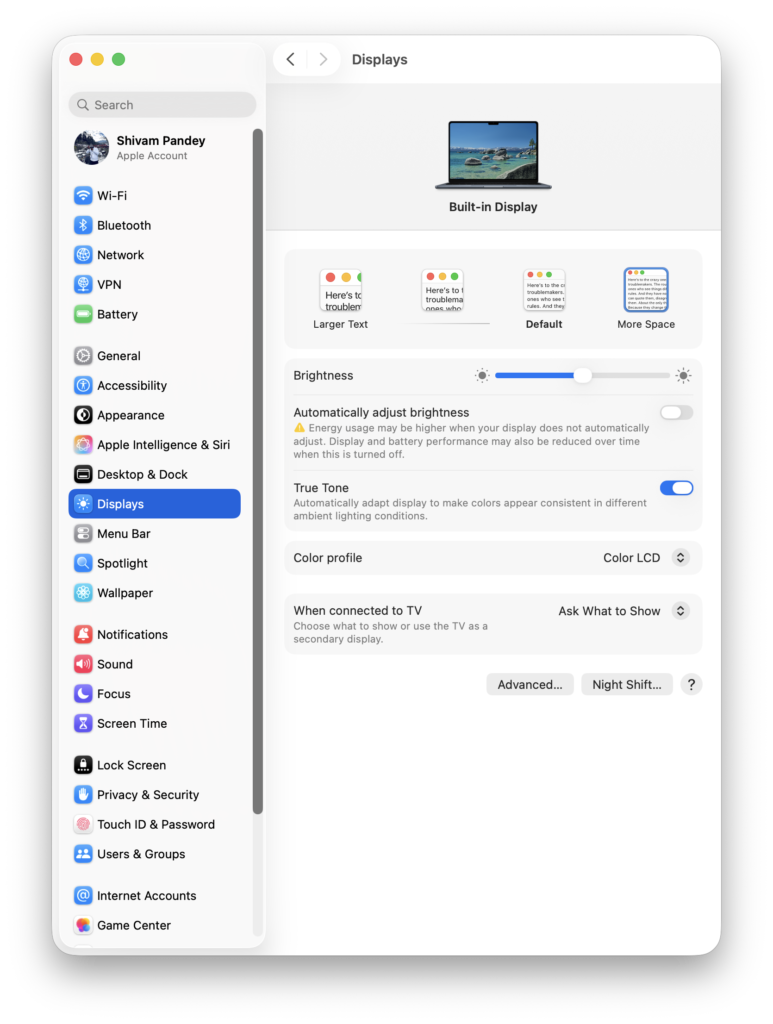
That told me we were on the right track.
Step 2: Automatic brightness and True Tone (the silent contributors)
This one is subtle and easy to miss.
macOS Tahoe aggressively adjusts brightness and color temperature based on ambient light. On paper, this is seamless. In reality, it can cause visible flicker when lighting conditions change even slightly.
In my friend’s case, the flicker was worse in rooms with mixed lighting.
What we did:
- Disabled automatic brightness
- Turned off True Tone temporarily
Result: another noticeable reduction in flickering.
Still not perfect, but the pattern was emerging.
Step 3: GPU switching, the usual suspect that’s often misunderstood
Some MacBook Pro models still switch between integrated and discrete GPUs.
When this happens mid-task, you may see:
- A brief flash
- A brightness jump
- A flicker during app switching
On macOS Tahoe, GPU switching is more dynamic and less visible, but not always flawless.
Test we ran:
- Disabled Automatic Graphics Switching
- Forced the system to stay on one GPU
Battery life dropped slightly. Flickering dropped significantly.
Now we knew this wasn’t a failing GPU. It was a transition problem.
Step 4: The thing that actually caused the issue
Here’s the part that surprised me.
The Mac had a third-party utility installed that modified display behavior. Nothing malicious. A well-known app used for color profiles and external monitor tuning.
It wasn’t actively running. It was just there.
On macOS Tahoe, even dormant background agents can hook into display services.
Once we:
- Fully removed the app
- Restarted
- Reapplied clean display settings
The flickering stopped completely.
No exaggeration. Gone.
Why Safe Mode is such a powerful diagnostic tool
If you’re stuck, Safe Mode is your truth serum.
Safe Mode:
- Disables third-party GPU hooks
- Limits dynamic graphics behavior
- Uses conservative display drivers
When we booted into Safe Mode, there was zero flickering.
That confirmed this was a software interaction problem, not hardware failure.
External monitors make the issue look worse (but aren’t the cause)
Another confusing part was that the flickering looked worse when connected to an external display.
That doesn’t mean the external monitor is bad.
External displays introduce:
- Cable quality variables
- Adapter limitations
- Independent refresh rates
macOS has to synchronize two displays with different characteristics. Any instability becomes more visible.
Once the internal issue was fixed, the external display behaved normally again.
When screen flickering actually is hardware-related
This is important.
If flickering:
- Appears even in macOS Recovery
- Persists in Safe Mode
- Shows lines, artifacts, or color distortion
- Happens identically on internal and external displays
Then you may be looking at GPU or display cable failure.
That’s when involving **Apple Support or an authorized service provider makes sense.
But don’t jump there prematurely.
A logical troubleshooting order (what I recommend now)
If I had to fix this again, here’s the exact order I’d follow:
- Observe when flickering happens
- Update macOS Tahoe to the latest build
- Lock refresh rate manually
- Disable automatic brightness and True Tone
- Test GPU switching behavior
- Boot into Safe Mode
- Remove third-party display-related utilities
- Test external displays only after internal stability
- Escalate to hardware diagnosis last
This saves time and avoids unnecessary repairs.
Final thoughts: why this issue is more common now
MacBook Pro screen flickering feels more common because macOS is doing more behind the scenes than ever before.
Dynamic refresh rates, AI-based brightness, aggressive power optimization, and complex GPU routing all make displays more intelligent but also more fragile to conflicts.
The good news? Most flickering issues are fixable without replacing hardware.
In my friend’s case, the MacBook Pro is now stable, flicker-free, and running perfectly on macOS Tahoe.
The key wasn’t a magic fix. It was understanding why the flicker happened and removing the conflict instead of fighting symptoms.
If your MacBook Pro screen is flickering, don’t panic. Listen to the pattern. The system is usually telling you exactly where the problem lives.